Little Pay WooCommerce Plugin
The Little Pay Gateway plugin for WooCommerce allows merchants to accept Card and Mobile Money payments (including M-PESA STK Push) directly on their WordPress site.
1. Installation
The plugin is distributed as a ZIP file. You can download it here.
- Log in to your WordPress Admin dashboard.
- Navigate to Plugins > Add New > Upload Plugin.
- Select the
Little_Pay_Plugin.zipfile and click Install Now. - Activate the plugin.
2. WooCommerce Configuration
To enable and configure the gateway:
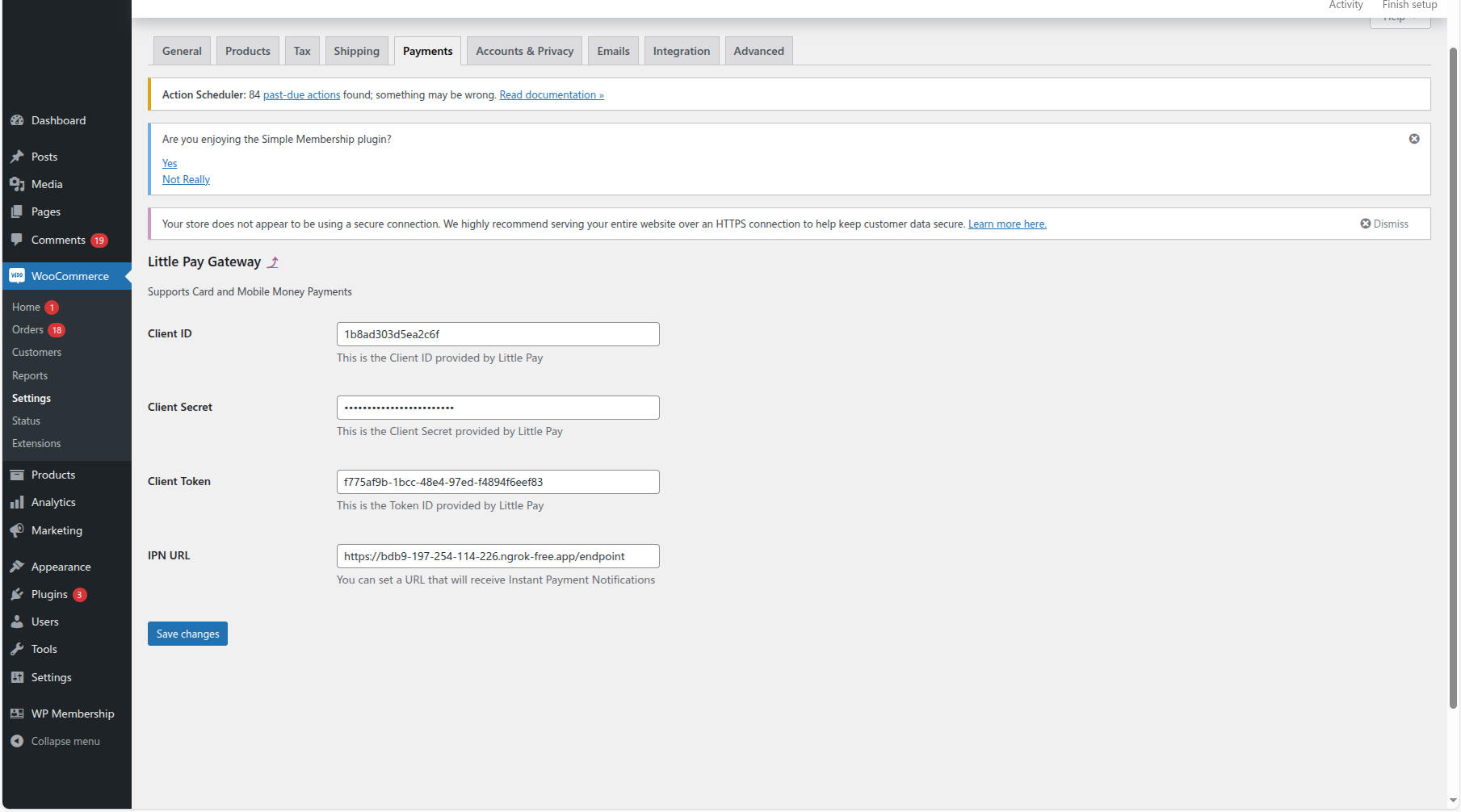
- Go to WooCommerce > Settings > Payments.
- Find Little Pay Gateway in the list and click Finish set up (or Manage).
- Ensure the checkbox Enable Little Pay is checked.
- Fill in the following credentials (retrieved from your Little Pay Merchant Portal):
- Client ID
- Client Secret
- Client Token ID
- (Optional) Set an IPN URL if you wish to receive Instant Payment Notifications at a specific endpoint.
- Click Save changes.
3. Automatic Order Status Updates (REST API)
To ensure order statuses (e.g., from "Pending" to "Processing/Completed") update automatically after a successful payment, you must link your WooCommerce REST API to the Little Pay Portal.
Step 1: Generate WooCommerce API Keys
Go to WooCommerce > Settings > Advanced > REST API.
Click Add key.
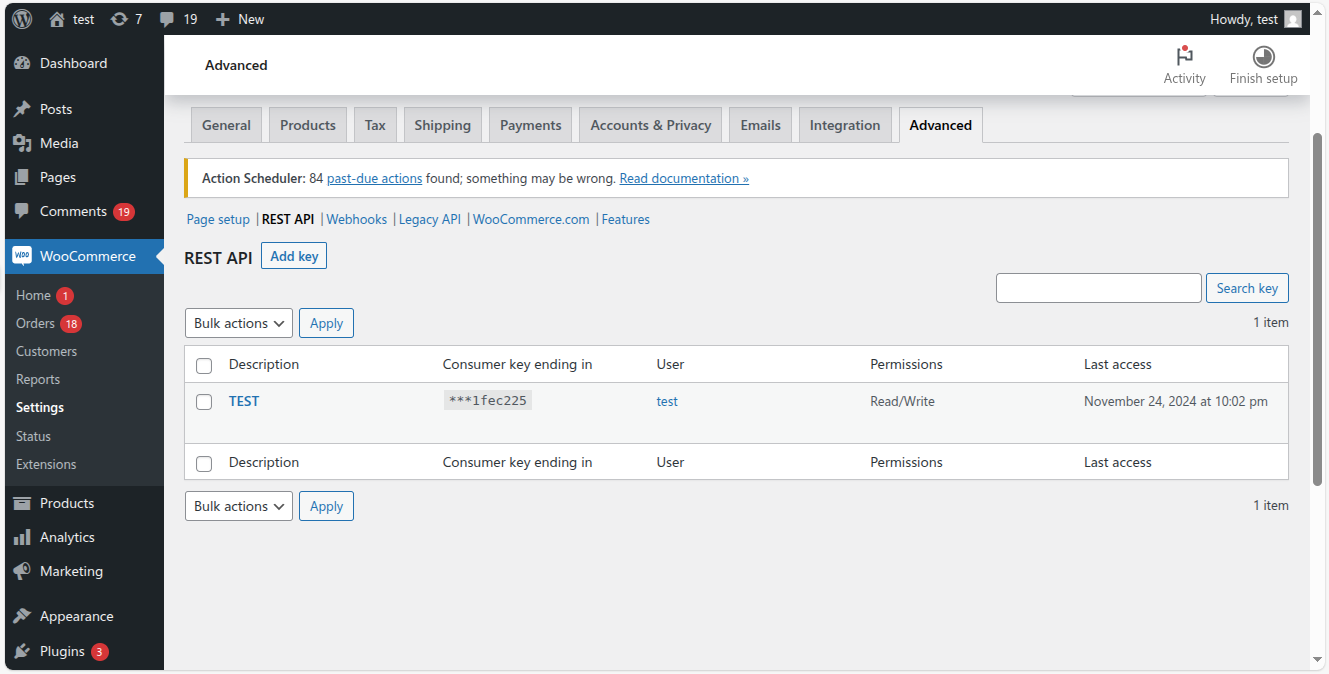
Provide a description (e.g., "Little Pay Integration").
Select a User (usually your admin account).
Set Permissions to Read/Write.
Click Generate API key.
Copy the Consumer Key and Consumer Secret.
Step 2: Configure Little Pay Portal
- Log in to the Little Pay Merchant Portal.
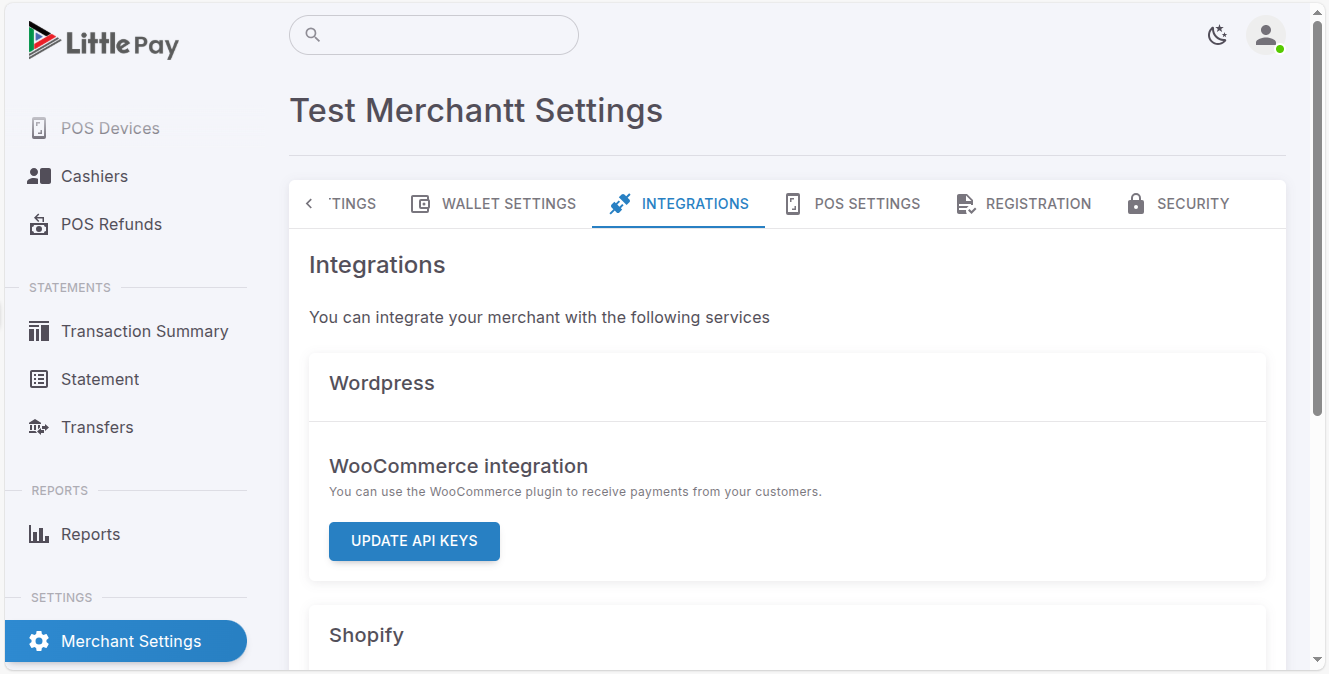
- Navigate to Merchants > Merchant Settings > Integrations > Wordpress.
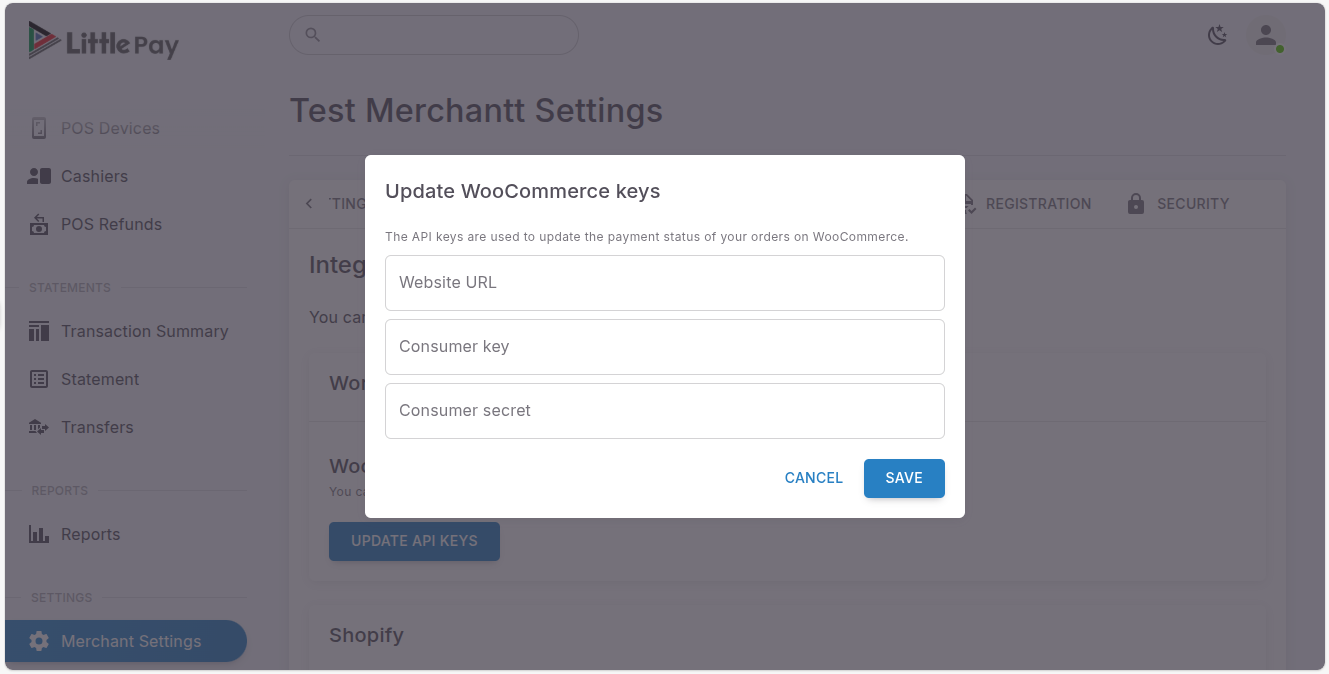
- Paste the Consumer Key and Consumer Secret generated in Step A.
- Save the settings.
4. Payment Flow
- At checkout, the customer selects Little Pay.
- Upon clicking "Place Order", they are redirected to the Little Pay checkout page.
- If paying via M-PESA, they will receive an STK Push prompt on their phone.
- Once payment is confirmed, the customer is redirected back to your "Thank You" page.
- The WooCommerce REST API integration handles the background update of the order status.
5. Troubleshooting
- Order status not updating: Ensure the REST API keys have
Read/Writepermissions and are correctly entered in the Little Pay portal. - Redirect issues: Ensure your site's permalinks are set to something other than "Plain" (e.g., "Post name").
- STK Prompt not appearing: Confirm the customer provided a valid Safaricom number and that the Little Pay keys (Client ID/Secret) are correct.